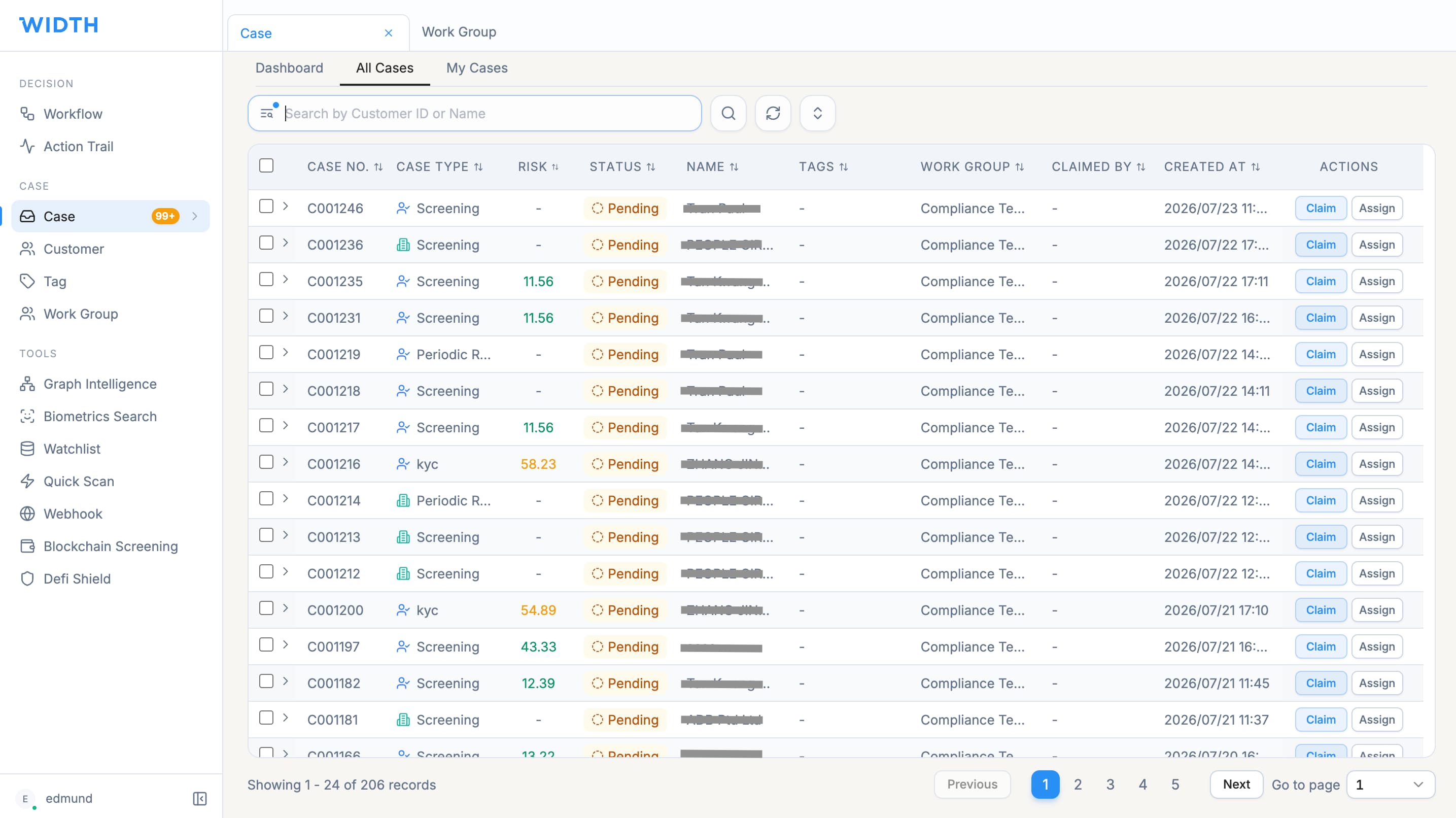
How a case enters the queue
When a workflow reaches a Decision node with a REVIEW outcome, WIDTH creates a case containing the customer, workflow context and collected verification information. The unclaimed case appears in Case Hall.
Work Groups can distribute cases by team, region or business line. Maker-checker controls may require a recommendation from one analyst and confirmation by a senior analyst or compliance officer.
Claim and review a case
- Select Ticket in the left sidebar.
- Open Case Hall to see unclaimed cases in your current domain.
- Search by customer ID or name when required.
- Review the case number, work group, customer, workflow, status and creation time.
- Select Claim. The case moves from Case Hall to My Cases.
- Open My Cases and select the claimed case.
- Review submitted information, documents, verification results, screening hits, risk scores and workflow context.
- Record the required review notes and select Approve or Reject according to your organisation’s process.
Use My Cases efficiently
My Cases shows cases assigned to the signed-in user. Use its search field for customer ID or name and the status dropdown to narrow the queue.
If My Cases is empty, return to Case Hall to check for available work. If Case Hall is also empty, all cases may already be claimed or no workflow has generated a pending review.
Before making the final decision
Confirm that you have reviewed the actual evidence rather than only the summary status. Resolve or explain material screening, verification and risk issues. Follow maker-checker requirements when the decision needs senior confirmation.
Expected result
After the final decision, the case closes and the customer’s status updates. The case remains available through the customer’s Case History and platform reporting, subject to your permissions.
WIDTH reference material
Based on WIDTH One Platform User Guide v2.0, dated 12 April 2026
Interface labels and available actions may vary by role, configuration and platform version. Contact your WIDTH administrator or support representative if an option shown here is unavailable.