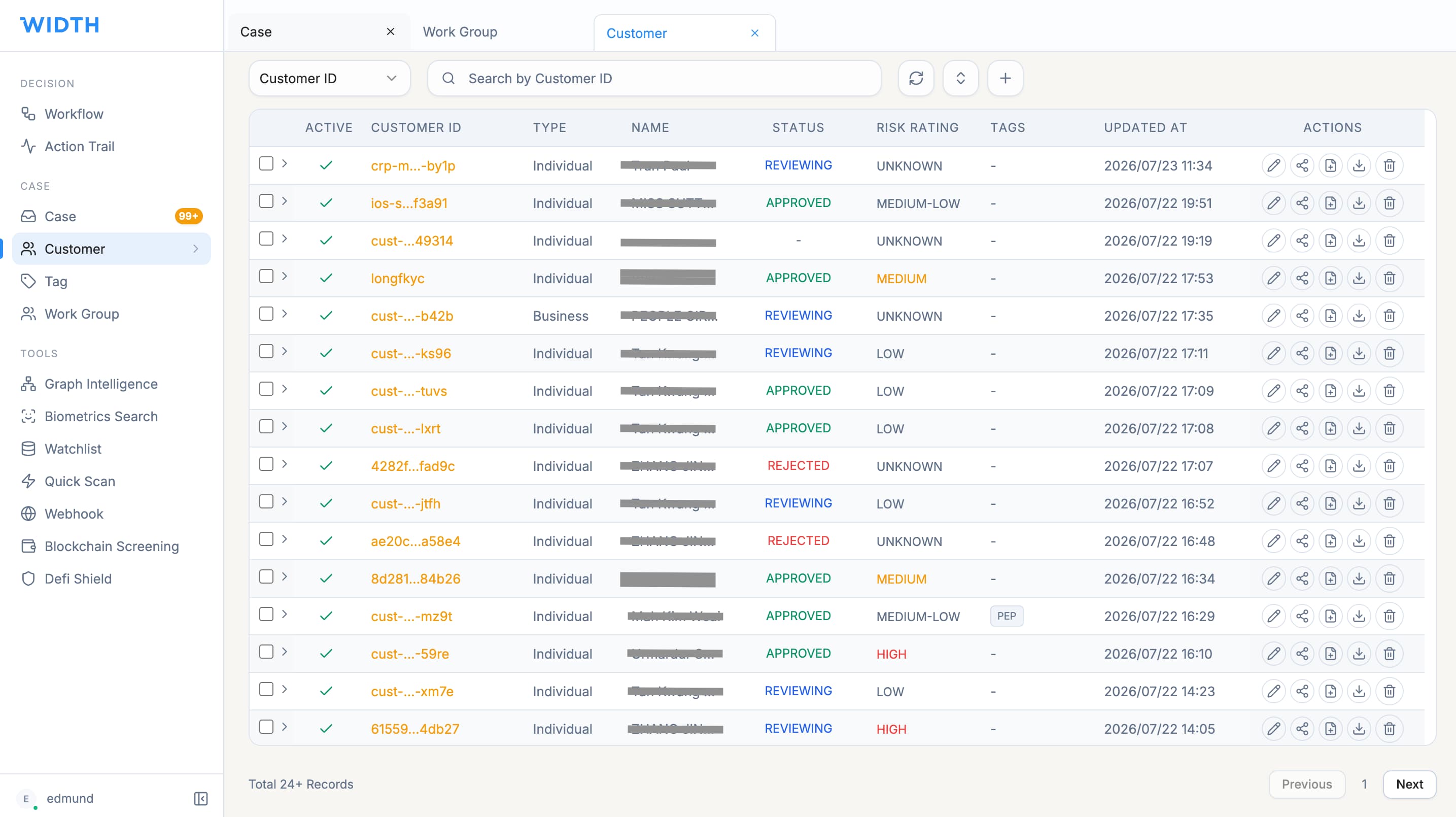
Find and review a customer
- Select Customer List in the sidebar.
- Choose the search type, enter the customer ID or other supported value and run the search.
- Select the Customer ID link to open Customer Detail.
- Use Overview for basic information, related parties, documents and comments.
- Use Screening for summary and source-level results, Verification for completed checks, Risk Assessment for current and previous ratings, and Case History for linked cases.
Add a connected related party
1. On Customer Detail, stay on Overview and find the CRPS section.
2. Select Add CRP.
3. Choose Individual or Corporate.
4. Enter the required full name, status, role, nationality or residence fields and any available ownership, identity, address and contact details.
5. Review the information and save the CRP.
Typical roles include Director, Shareholder, Ultimate Beneficial Owner, C-Suite Officer, Partner and Authorised Signatory. Provide complete identifiers before screening to reduce weak matches.
Start screening from Customer Detail
Select Create Case at the top-right of Customer Detail. In the dialog, choose an appropriate workflow. The Screening & Scoring workflow runs watchlist screening and risk scoring for the customer and its related parties in the background.
For a quick on-demand check on one customer, return to Customer List and use Quick Scan. For scheduled, repeat or batch screening, use the relevant Screening or ODD workflow instead.
Import multiple customers
From Customer List, select the add button and choose BATCH UPLOAD. Download the Excel template, complete it without changing the required structure and upload the .xlsx file.
Select Trigger Screening if imported customers should be screened immediately, then select Process. Check Historical Batch Upload for the submitted import and its status.
Expected result
The customer record shows the saved related parties and the selected workflow creates updated screening, scoring or case information. Use Screening and Case History to confirm the result.
WIDTH reference material
Based on WIDTH One Platform User Guide v2.0, dated 12 April 2026
Interface labels and available actions may vary by role, configuration and platform version. Contact your WIDTH administrator or support representative if an option shown here is unavailable.