Before you begin
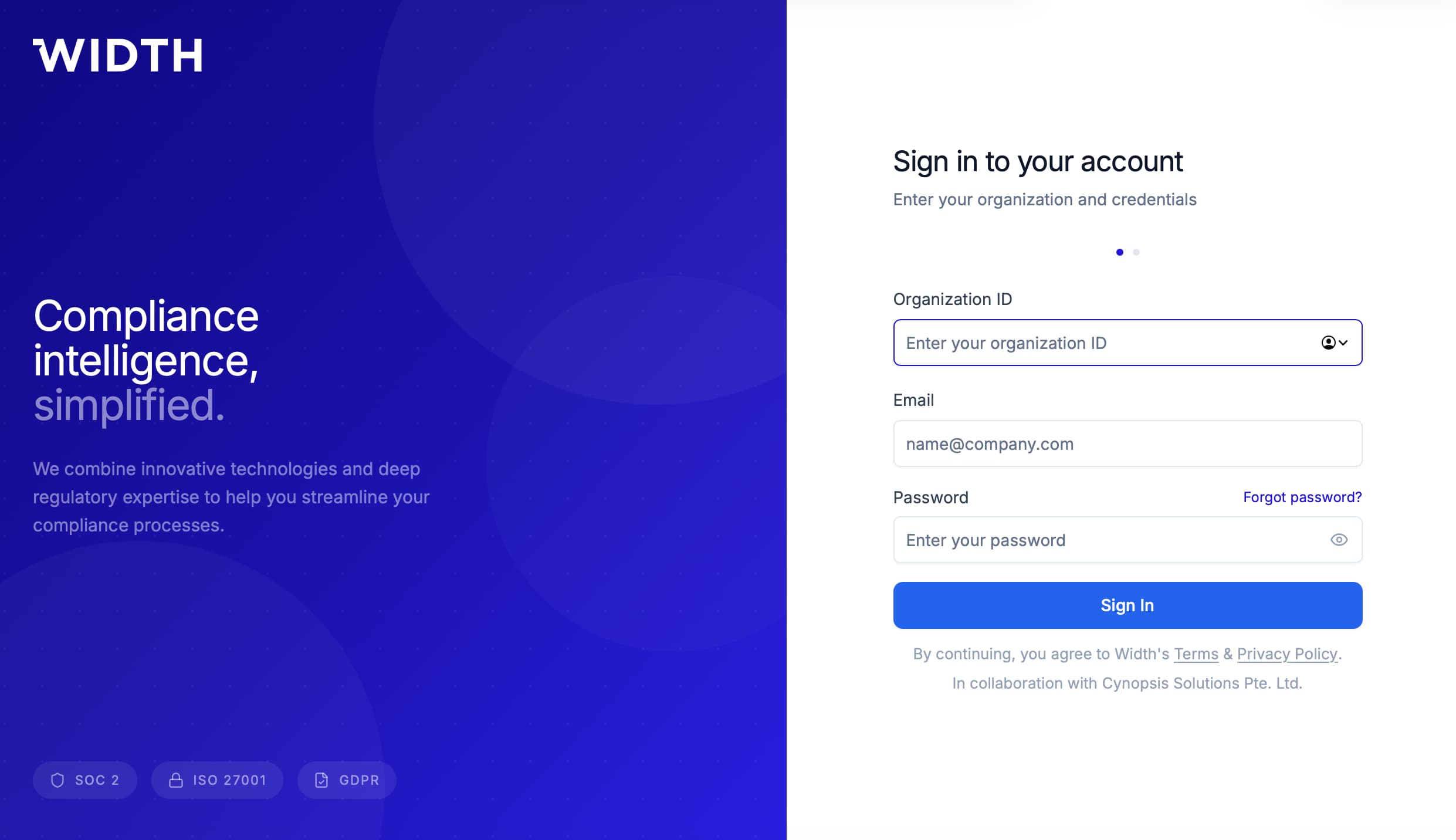
You need your organisation’s WIDTH login URL, Organisation ID, registered email address and password. Your Organisation ID is created with the tenant and may be a company abbreviation or custom code. Ask your administrator if you do not know it.
If you received an invitation email, use the email address and initial password stated there. Change an initial password after your first successful sign-in where your organisation’s policy requires it.
Log in to WIDTH
- Open your organisation’s dedicated WIDTH URL in a supported browser.
- Enter the Organisation ID in the first field.
- Enter your registered email address and password.
- Check the details, then select Sign In.
- Wait for WIDTH to verify the credentials and open the default Workflow List page.
Understand the interface
The left sidebar is the main navigation area. It provides access to Workflow, Ticket for case management, Customer List, Applicant Tag, Workgroup, Graph Intelligence, Biometrics Search, service tools, Reports and—where permitted—the Admin Console.
The main content area changes according to the selected module. The user area at the bottom of the sidebar opens account and user options. What you can see depends on your assigned role and business-unit permissions.
If you cannot sign in
Confirm that the Organisation ID belongs to the correct tenant and that you are using the invited email address. Check for copied spaces and verify Caps Lock before retrying.
Repeated incorrect passwords may temporarily lock the account. Stop repeated attempts and ask your administrator to verify the account status or reset access.
Expected result
After a successful sign-in, the Workflow List opens and your permitted modules appear in the sidebar. If a module mentioned in this Knowledge Centre is missing, ask an administrator to review your role or business-unit access.
WIDTH reference material
Based on WIDTH One Platform User Guide v2.0, dated 12 April 2026
Interface labels and available actions may vary by role, configuration and platform version. Contact your WIDTH administrator or support representative if an option shown here is unavailable.