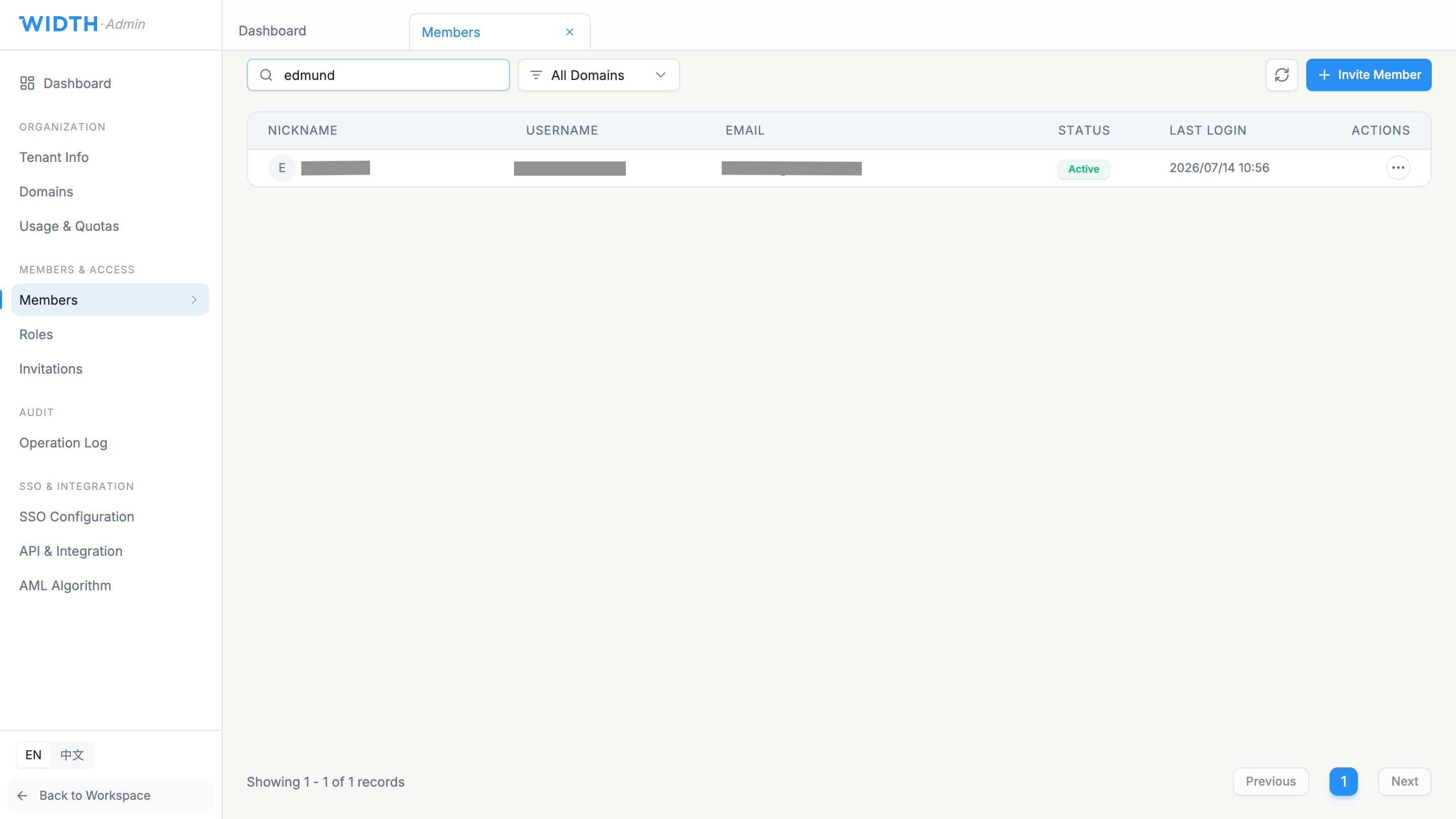
Understand access levels
WIDTH uses role-based access control across Platform, Tenant and Business Unit levels. Common roles include Tenant Owner, Tenant Admin, Domain Admin, Compliance Officer, Senior Analyst, Analyst, Viewer, Auditor and Integration Admin.
System roles cannot be edited directly. When a different permission set is required, clone a suitable system role as a template and adjust the custom role.
Invite and assign a user
- Open Admin Console from the sidebar.
- Open Members or Invitations according to your task.
- Create an invitation using the user’s correct email address.
- Assign the appropriate tenant or business-unit role and scope.
- Send the invitation and track whether it is Pending, Accepted or Expired.
- Resend or revoke an outstanding invitation when necessary.
Create a Work Group
- Select Workgroup in the main sidebar.
- Select New Work Group.
- Enter a recognisable group name, such as KYC Review Team.
- Add a description explaining the group’s responsibility.
- Select the members who should receive or claim cases for that group.
- Save and confirm the member count on the Work Group list.
Choose roles carefully
Analysts handle day-to-day claiming and processing. Senior Analysts handle complex cases and review junior decisions. Compliance Officers approve higher-risk cases and configure compliance rules. Viewers are read-only, while Auditors review audit information and reports.
Integration Admin is intended for API keys, SSO and webhook administration. Avoid assigning broad tenant administration simply to solve a single missing permission.
Troubleshooting access
If a user cannot see a module, confirm the invitation was accepted, the account is active, the role applies to the correct tenant or business unit and the user belongs to the necessary Work Group.
Expected result
The invited user can sign in with the assigned scope, and Work Group membership allows relevant case routing and team organisation without granting unrelated administrative access.
WIDTH reference material
Based on WIDTH One Platform User Guide v2.0, dated 12 April 2026
Interface labels and available actions may vary by role, configuration and platform version. Contact your WIDTH administrator or support representative if an option shown here is unavailable.